
Billing and your Supporter subscription
How to change or cancel your plan, and how Channel Surfer shows up on your statement.
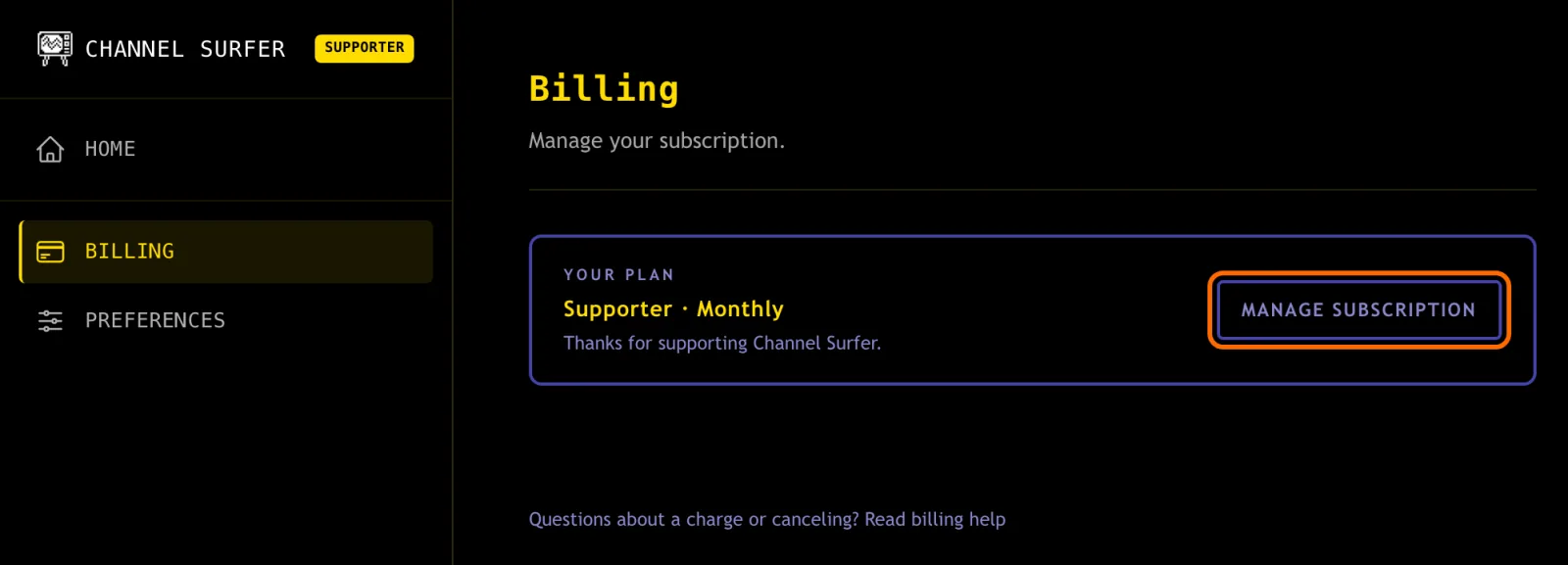
To change or cancel: open your Dashboard, select Billing, then select Manage subscription.
On your statement: Channel Surfer charges show up as RANDOM DAILY URLS.
Why your statement says RANDOM DAILY URLS
Channel Surfer is made by Random Daily URLs, a small company, and that's the name your bank shows. A charge from RANDOM DAILY URLS for the price of your plan is your Channel Surfer Supporter subscription.
Example only. Your date and amount match your plan. Some banks shorten the name or add a location or reference number.
Your receipt emails come from Random Daily Urls too, and they list your plan as Channel Surfer Pro. That's the old name for Supporter. It's the same plan.
Change or cancel your subscription
You manage your plan on a secure page run by Stripe, the payment company we use. You'll need to be signed in first.
- On the TV, select Dashboard in the toolbar at the bottom of the screen.

- In the sidebar, select Billing.
- Select Manage subscription. The Stripe page opens.
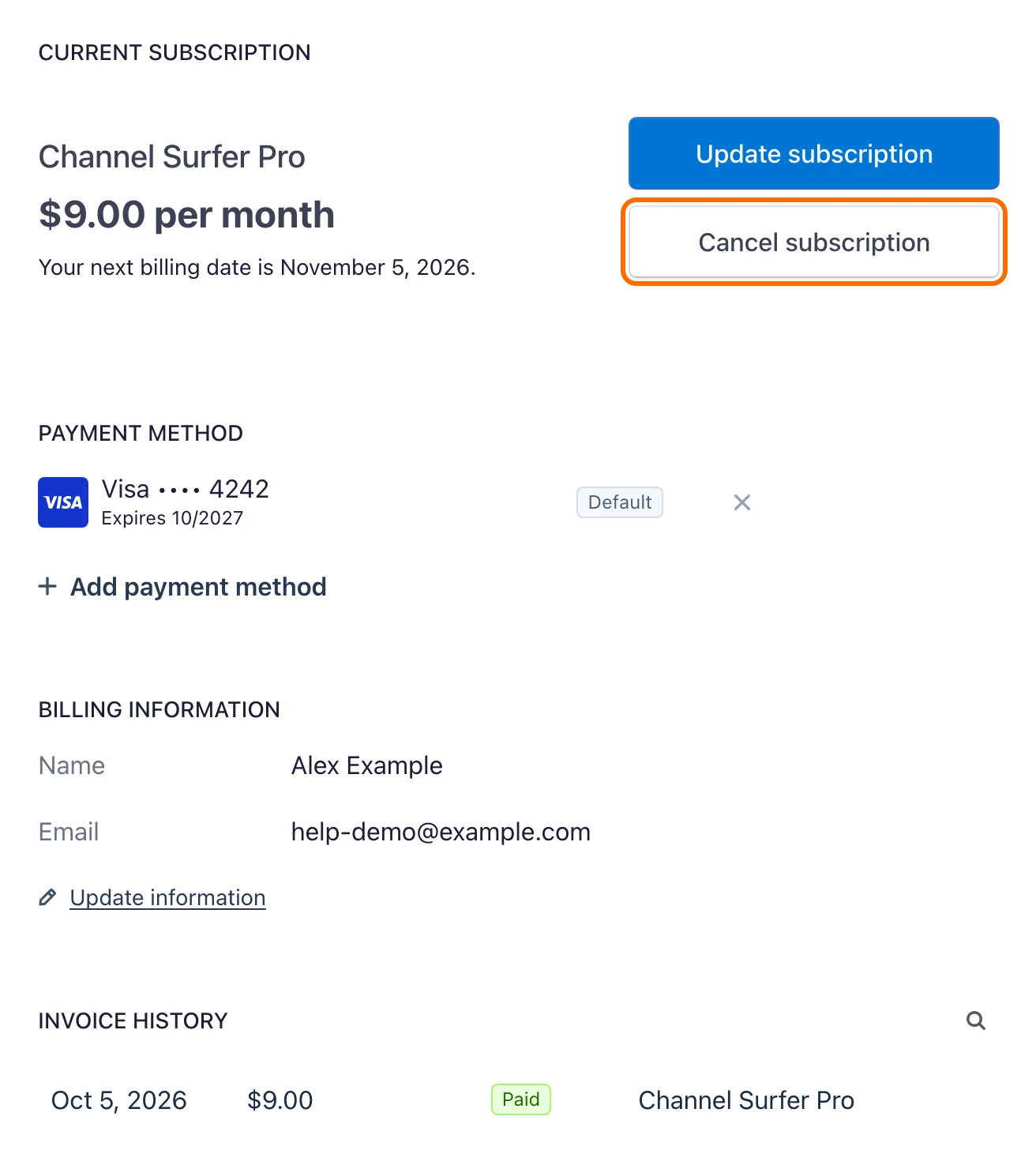
- To cancel, select Cancel subscription.
- Tell us why you're leaving if you like (it's optional), then select Continue to cancellation.
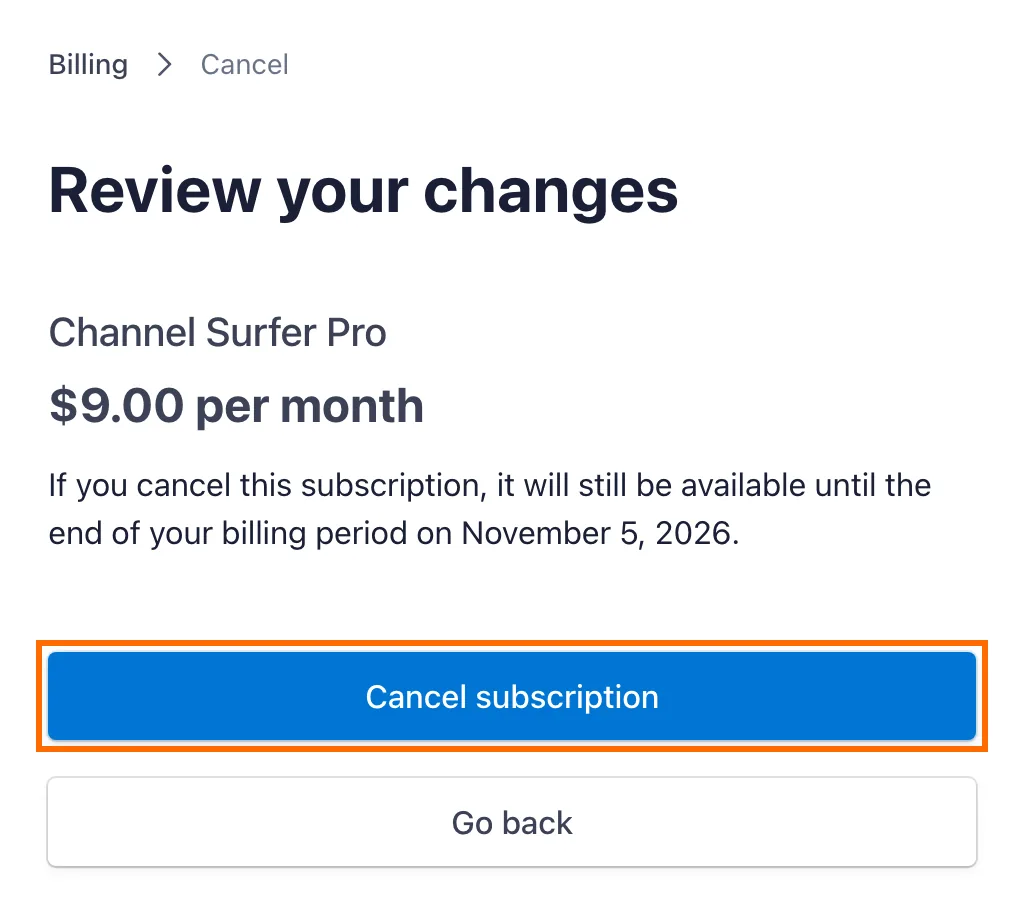
- On Review your changes, check the date your access ends, then select Cancel subscription.
When you're done, select Return to Random Daily Urls at the top of the Stripe page to come back to your Dashboard.
What happens when you cancel
- You keep Supporter until the end of the month or year you've already paid for. You won't be charged again.
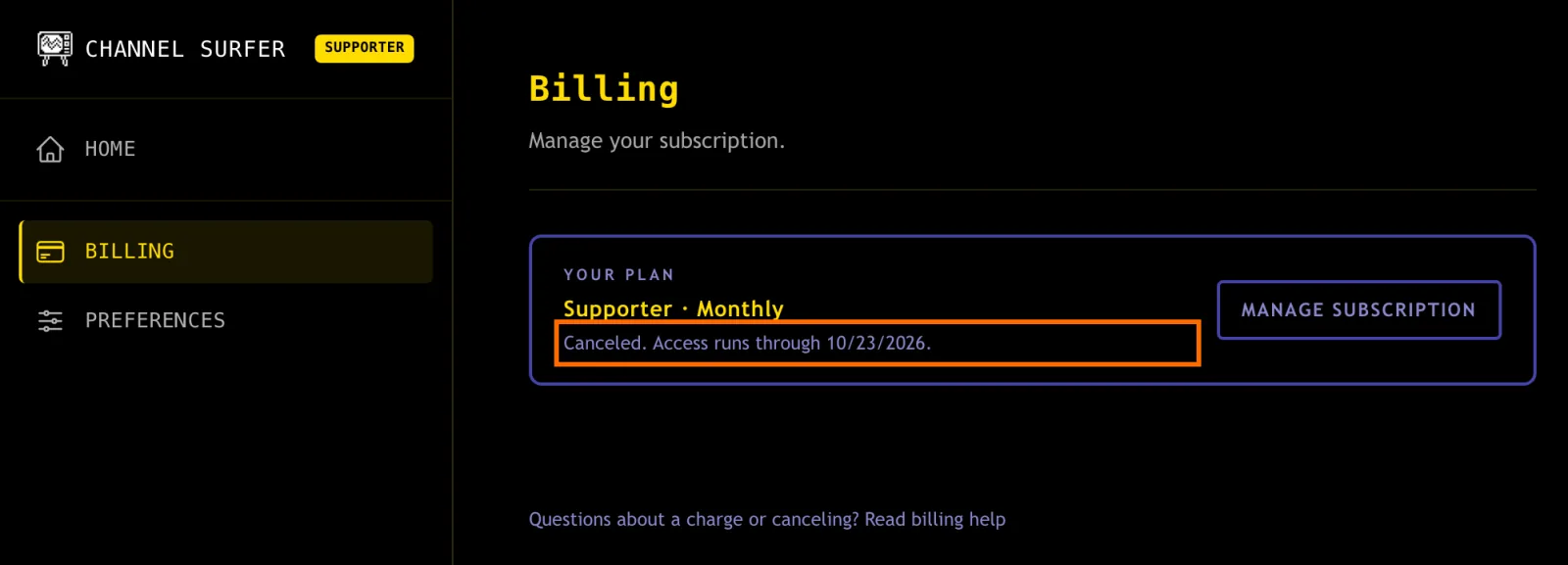
- Your Billing page shows the date your access ends.
- We don't refund the unused part of a month or year.
- We never delete your channels. Once your access ends, the channels you added as a Supporter are saved but hidden from your guide, and they stop getting new videos. Channels you imported on the Free plan stay in your guide.
- Come back any time from the plans page. Your saved channels return and start updating again.
Switch between monthly and annual
- Open your Dashboard, select Billing, then Manage subscription.
- Select Update subscription.
- Choose Monthly or Yearly, then select Continue. Stripe shows what you'll pay before you confirm.
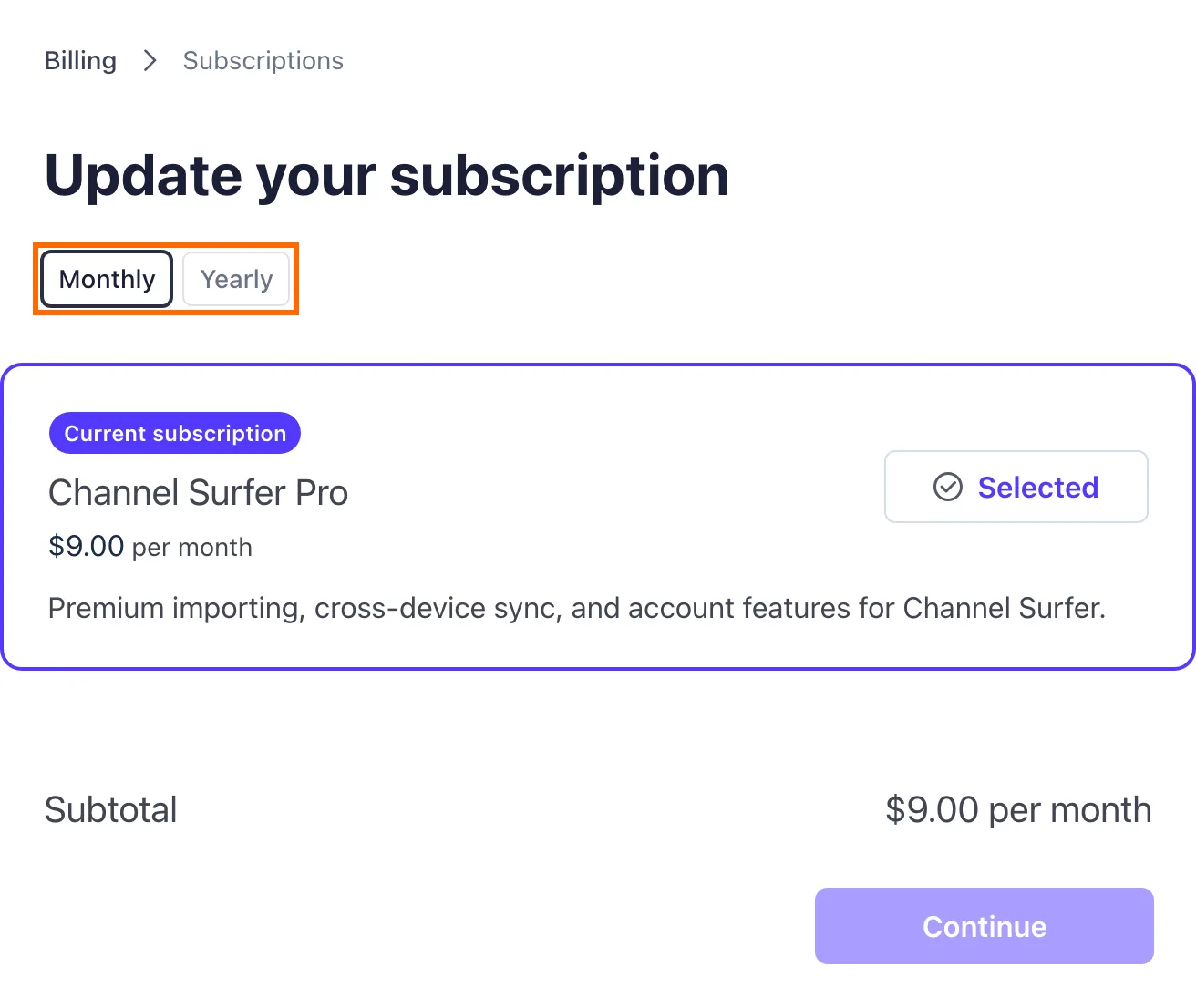
When the switch happens
- Monthly to yearly starts right away. You get credit for the unused part of your month, so you only pay the difference.
- Yearly to monthly starts when the year you've paid for ends. Until then, the Stripe page shows the date the change happens.
Update your card or get a receipt
Both live on the same Stripe page. Open your Dashboard, select Billing, then Manage subscription.
- To change your card, look under Payment method.
- Every past payment is listed under Invoice history. Select one to view or download it.
We never see your full card number. Stripe stores it.
Can't find the Billing page?
- Make sure you're signed in with the account you paid with. If you have more than one email address, try the other one.
- Billing only shows while your Supporter access is active. If your plan has ended and you need an old receipt, send us a message and we'll email it to you.
Don't recognize a charge?
If you see RANDOM DAILY URLS and aren't sure why, try these first:
- Search your email, including spam, for Random Daily Urls. Every charge sends a receipt.
- Check any other email address you might have signed up with.
- Ask anyone who shares the card.
Still not sure? Send us a message with the date and amount of the charge and the last 4 digits of the card. Never send your full card number. We'll look it up and sort it out.
Charged after you canceled?
Canceling stops your next renewal. It doesn't undo a payment that went through before you canceled. If you were charged after the date on your Billing page, send us a message and we'll fix it.
Still need help?
Send us a message from the contact page. Supporters get a reply within 24 hours.
Updated October 5, 2026