
Use your phone as a remote
Keep watching on the big screen and control Channel Surfer from your phone. The remote works with Free and Supporter accounts.
Pair your phone
- Open Channel Surfer in a browser on the screen you want to watch. You don't need to sign in on that screen.
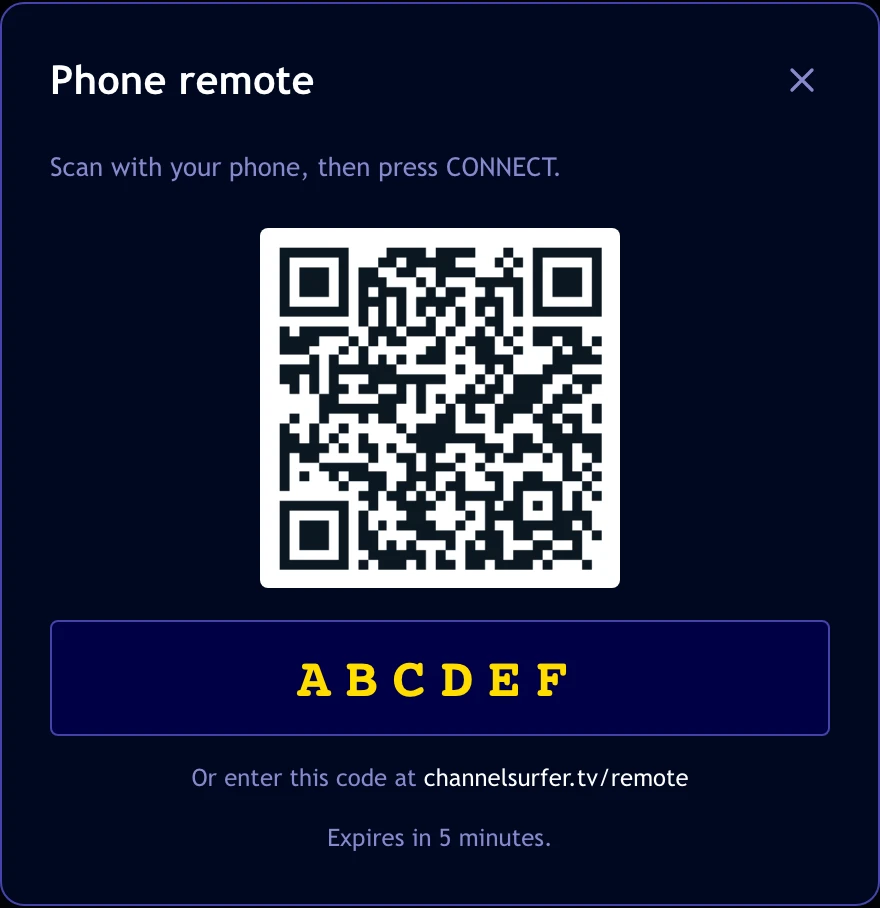
- Select the Phone remote button in the TV footer, or press T on its keyboard.
- Scan the QR code with your phone. You can also open channelsurfer.tv/remote on your phone and enter the six-letter code shown on the TV.
- Sign in on your phone if asked. Your Free or Supporter account works.
- Press CONNECT. Wait for the TV to say Phone paired and for the controls to appear on your phone.
The pairing code expires after five minutes. Scanning it fills in the code; you still press CONNECT to pair.
If the TV isn't signed in, connecting links it to your account. It then shows your channels and favorites until you unlink it, for up to 30 days.
Use the remote
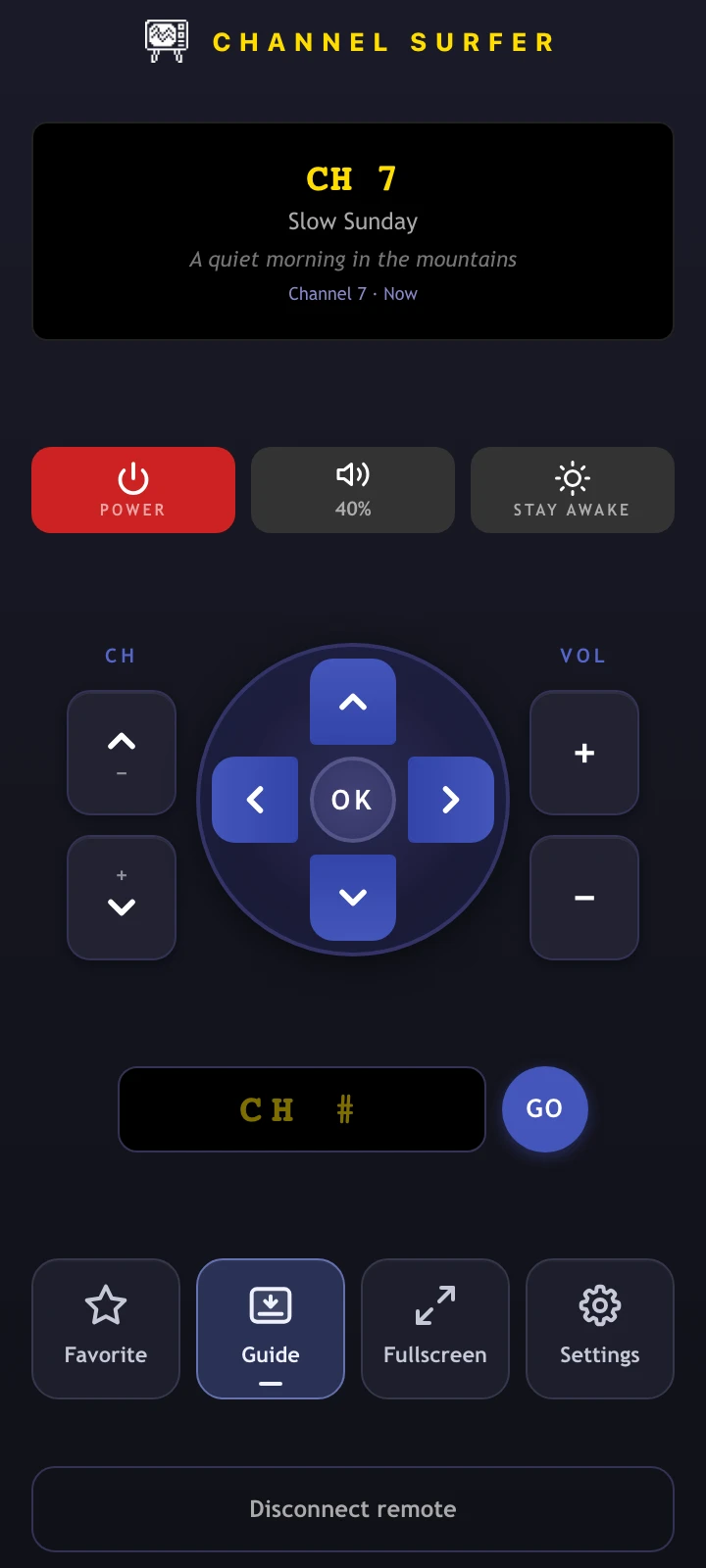
The screen keeps playing while your phone shows the current channel and program. Use the channel controls to move through the lineup, choose a random channel, or jump to a channel number.
- Guide: show or hide the guide, move through its channels and programs, and select something to watch.
- Volume and mute: change the TV volume. Some TV browsers only support mute and unmute.
- Favorite: save or remove a favorite on a TV signed in to your account. A linked TV can't change favorites, so change them in Channel Surfer on your phone.
- Fullscreen and power: fill the TV browser window or turn Channel Surfer playback off and on. Power controls the app, not the physical television.
Change TV settings
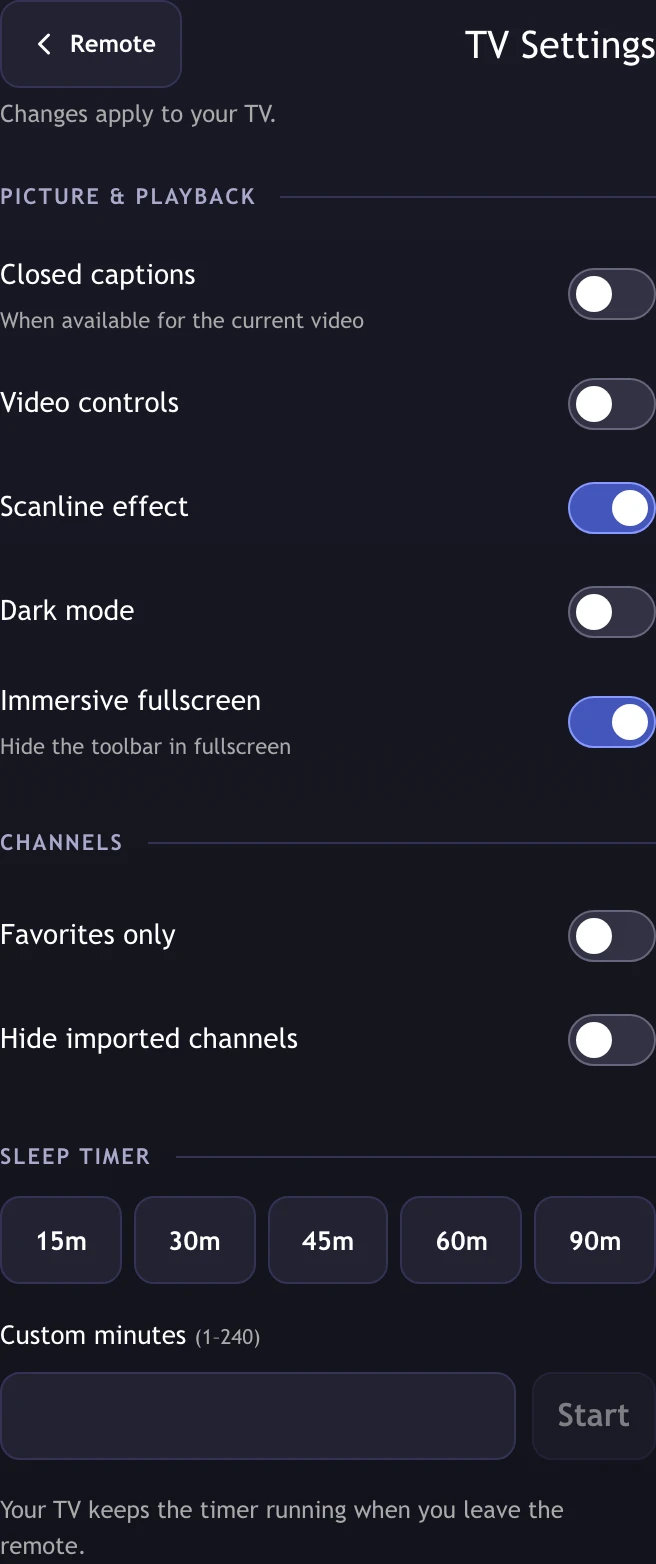
Tap Settings on the remote to change the TV's settings. You can toggle captions, scanlines, dark mode, and player controls; choose which channels appear; and set or cancel a sleep timer.
Some options depend on the TV's browser, channels, or plan. Immersive fullscreen is a Supporter option. Tap Remote to return to the controls.
Keep your account secure
A TV that is signed in pairs only with a phone signed in to the same account. Pairing never signs a TV into your phone's account or replaces the account on the TV.
A TV that isn't signed in shows the account of the phone that connected it. It can show your channels and favorites, but it can't change them. It never gets your password. Only connect a TV you trust.
Signing out, switching accounts, or ending a sign-in session stops remote access. If either device cannot verify its account, controls stop until you sign in and pair again.
Signing out on your phone stops its remote control, but it doesn't unlink TVs. A linked TV keeps showing your account until you unlink it.
Disconnect or unlink
- Done or Close: closes the TV's pairing dialog and leaves your phone connected.
- Disconnect remote: ends this phone's control without turning off playback. You can also open Phone remote on the TV and choose Disconnect phone. A linked TV stays linked.
- Unlink this TV: on a linked TV, open Phone remote and choose Unlink this TV. The TV stops showing your account at once.
- Linked TVs: on your phone, choose Linked TVs under the code box, or open Settings while the remote is connected. Unlink a TV there. It stops showing your account at its next check, within 15 minutes.
- Disconnect all remotes: next to Linked TVs. It revokes remote access on every device connected to your account and unlinks every linked TV. Codes showing on your signed-in TVs stop working, and every device needs a fresh pairing. Linked TVs stop showing your account within 15 minutes.
When you finish with a shared screen, unlink it. If you signed in on that screen, sign out as well. Disconnecting a remote does not unlink the TV or sign it out.
If pairing does not work
- Code expired: choose Get new code on the TV, then scan or enter the new code.
- Code not accepted: use the six letters shown on the TV. Codes do not contain I, L, or O.
- Account mismatch: the TV is signed in to another account. Use that account on your phone, or sign out on the TV first.
- Sign in again on this TV: the TV's browser is signed in, but the page couldn't confirm it. Sign in again on the TV, then get a new code.
- Connection lost: keep the TV page open and check both devices' internet connections. Wait for reconnection, or use Try again. If the session has ended, get a new pairing code.
Still need help?
Send us a message from the contact page. Supporters get a reply within 24 hours.
Updated November 25, 2026